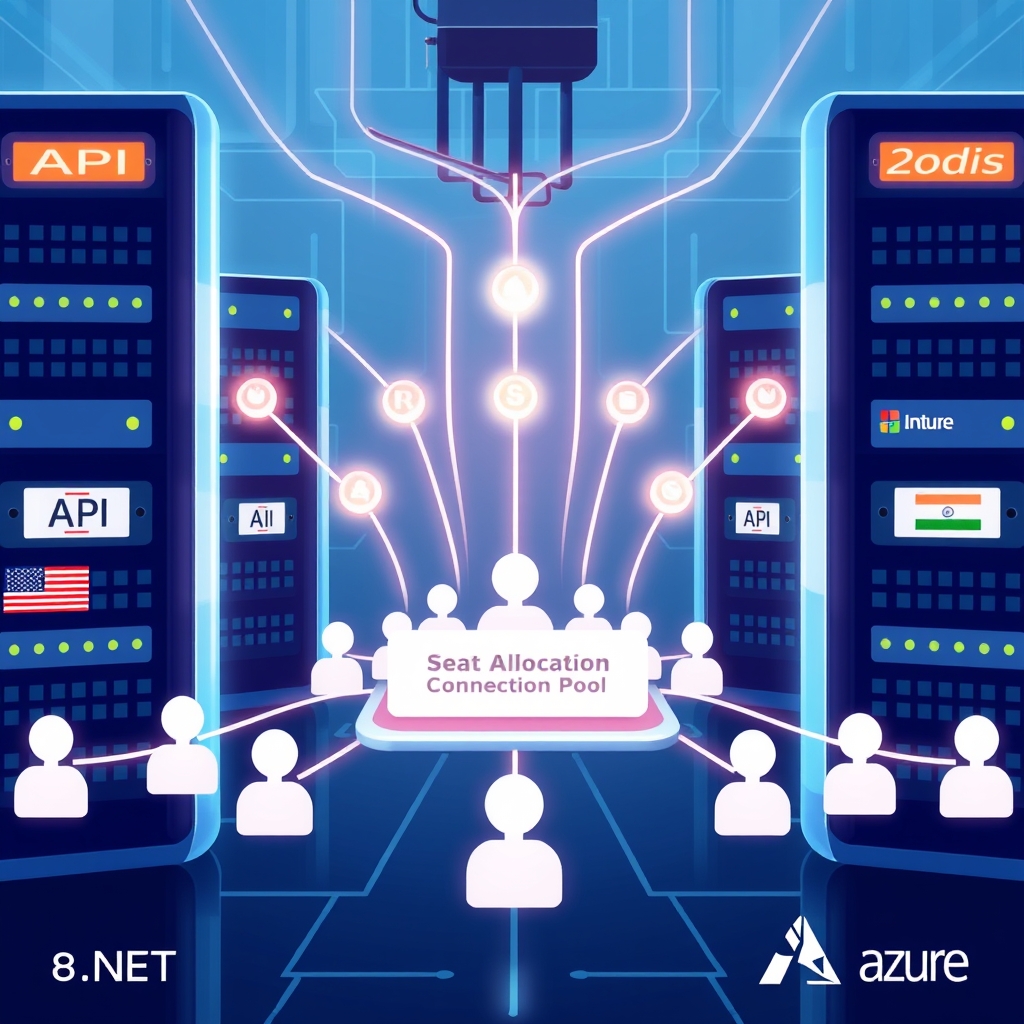
Optimizing ASP.NET Core Connection Pooling on Azure SQL
Quick Answer
Learn how to fine‑tune ASP.NET Core connection pooling to crush latency spikes in ticket‑booking workloads, avoid leaks, and keep real‑time seat allocation reliable.
Quick Answer
Optimizing ASP.NET Core Connection Pooling: Learn how to fine‑tune ASP.NET Core connection pooling to crush latency spikes in ticket‑booking workloads, avoid leaks, and keep real‑time seat allocation reliable.
Connection Pool Exhaustion in Ticket Sales
When a blockbuster event launches, the traffic spike is not a nice, predictable ramp; it’s a 10‑fold surge that hits the database in milliseconds. If the SqlConnection pool is under‑tuned, the first few thousand requests start queuing, request timeouts explode, and the UI shows “Seats are no longer available” even though the inventory is still in stock. In that moment the revenue pipeline stalls, and the brand loses trust.
Real‑World Example: A 2,500 RPS Launch on Azure SQL
We built a .NET 7 API for a national music festival. The service ran on an App Service Plan with 8 vCPUs and 32 GB RAM. The initial deployment used the default Max Pool Size=100 and Min Pool Size=0. Within 30 seconds of launch the following telemetry appeared:
- Azure Monitor
sqlclient.pool.waittimespiked to 250 ms. - Active connections hit 100 and never fell below.
- User‑visible latency climbed from 120 ms to 1.2 s.
- SQL Profiler logged thousands of
Timeout expirederrors.
The root cause was the pool being saturated by a single request pattern: the checkout service kept a transaction open while waiting for a third‑party payment gateway. Each request held a physical connection for 5–7 seconds, quickly exhausting the pool.
Trade‑Offs in Connection‑Pool Tuning
When you change a pool setting you’re balancing three forces: latency, resource consumption, and reliability under spike. Below are the knobs and the trade‑offs that matter in production.
- Max Pool Size – Larger pools reduce wait times but increase memory usage and the risk of hitting the database’s connection limit. On Azure SQL the effective limit is
max connections = 500 * vCores. Exceeding it triggers throttling. - Connection Lifetime – Shorter lifetimes force reconnections, which can be costly during a flash sale. Longer lifetimes risk stale connections after network hiccups.
- Min Pool Size – A non‑zero minimum keeps the pool warm but can waste connections when traffic is low, especially on serverless or consumption plans where idle connections cost per‑second.
- Multiplexing (Npgsql) – Lets one physical connection handle multiple logical ones, cutting the required pool size but adding per‑request overhead and potential contention on the single socket.
- Command Timeout – A low timeout catches slow queries but may abort legitimate long‑running seat‑allocation logic, leading to partial failures.
- Retry Policy – Retries can hide transient errors but may increase pool churn if each retry pulls a new connection.
Tuning Connection Pool for Ticket Spike
- Measure baseline: Capture
active connections,wait time, andlatencyfor a steady load (e.g., 500 RPS). Use Azure Monitor, Application Insights, and SQL Server DMVs. - Calculate target concurrency:
Target = (RPS * Avg. DB time) * 0.8. For a 2,500 RPS launch with 0.4 s DB work, Target ≈ 800. - Set Max Pool Size:
Max = Target + 20%→ ~960. Cap it at the Azure SQL connection limit for the current vCore tier. - Choose Connection Lifetime: 300 s for Azure SQL is safe; for on‑prem SQL Server consider 600 s if the network is stable.
- Set Min Pool Size: 10 for production; 0 for serverless. For App Service, 5–10 keeps the pool warm without bloating memory.
- Enable Multiplexing (if using PostgreSQL): Set
Multiplexing=trueandMaximum Pool Size=1200to handle 3,000 logical connections. - Implement short transactions: Commit before any external call. Keep
CommandTimeoutat 15–20 s for seat‑allocation queries. - Configure retry logic with Polly:
Retry(3, exponentialBackoff)for deadlocks;CircuitBreakerfor sustained throttling. - Monitor in real‑time: Set alerts for
sqlclient.pool.waittime > 200 msandactive connections > 90% of Max. - Iterate: After each flash sale, analyze telemetry, adjust
Max Pool SizeorConnection Lifetimeaccordingly.
When This Fails in Production
- Long‑lived
DbContextin a background worker that never disposes. - Transactions that wrap external service calls.
- Static
DbContextinjected into a singleton. - Unbounded
Max Pool Sizeon a shared Azure SQL database, triggering throttling. - Connection lifetime shorter than the average network reset period, causing frequent reconnects during a spike.
Common Mistakes Engineers Make
- Using
AddDbContextinstead ofAddDbContextPool, which defeats pooling at the ADO.NET level. - Hard‑coding
CommandTimeout=30and ignoring that seat‑allocation queries can legitimately take 1–2 s during a high‑load event. - Setting
Min Pool Size=100on a consumption plan, causing idle connections to accrue cost. - Over‑optimizing for the worst case by setting
Max Pool Size=10,000without checking the database’s connection cap. - Neglecting to enable
EnableRetryOnFailureon EF Core, leading to unhandled transient SQL errors.
Better Approach Based on Experience
1. Scope DbContext to a single request and keep it async‑friendly. Avoid storing it in a static field or a singleton.
2. Separate reservation and payment concerns. Reserve the seat, commit, then call the payment gateway. If payment fails, roll back the reservation in a compensating transaction that uses a fresh connection.
3. Leverage EF Core’s second‑level cache for seat availability lookups. The cache lives in memory and removes the need for a DB round‑trip for every poll.
4. Use a dedicated “seat‑reservation” database shard that only handles the short transaction. The main catalog database can stay on a lower tier.
5. Instrument connection acquisition with a lightweight DbConnectionPoolListener that logs wait times per request, enabling fine‑grained analysis.
Connection Latency, Memory, and Batching
- Connection acquisition time is a linear function of
Max Pool Sizeand the number of concurrent requests. A 100 ms wait adds 100 ms to every request’s latency. - Memory footprint per connection on .NET 7 is ~200 KB; with 1,200 connections that’s ~240 MB.
- Each open connection consumes a TCP socket and a thread from the thread pool. On high‑concurrency workloads, consider
UseApplicationIntent=ReadOnlyfor read‑heavy queries to offload to a secondary replica. - Batching queries (e.g.,
sql.MaxBatchSize(100)) reduces round‑trips and frees connections faster.
| Configuration Option | Recommended Setting | Latency Impact | Leak Risk |
|---|---|---|---|
| Max Pool Size | Increase to 200–300 for high‑volume booking | Reduces latency spikes by keeping more ready connections | Higher memory consumption, but minimal leak risk if managed |
| Connection Lifetime | Set to 300 seconds to refresh stale connections | Prevents long‑lived connections that can cause latency | Reduces potential leaks by recycling connections |
| Connection Idle Timeout | Configure to 60 seconds to drop idle connections | Low impact on active latency, keeps pool lean | Lower idle timeout helps prevent resource leaks |
| Connection Resiliency | Enable retry policy with exponential backoff | Can add slight overhead, but improves reliability | Reduces risk of leaks by handling transient failures |
Scaling Notes
- On Azure App Service, scale‑out to multiple instances automatically increases
Max Pool Sizeper instance. Ensure each instance’s pool stays below the database’s connection limit. - When using Azure SQL Managed Instance, the connection limit is 500 per vCore. If you have 8 vCores, the hard cap is 4,000. Keep
Max Pool Size< 4,000 minus a safety margin. - For PostgreSQL on Azure Database, the connection limit is 5,000. Enabling multiplexing lets you handle 10,000 logical connections with 5,000 physical ones.
- Deploy a connection‑pooling proxy (e.g., HAProxy or PgBouncer for PostgreSQL) if you hit the database’s connection ceiling. The proxy can maintain a smaller number of physical connections while presenting a larger logical pool to the application.
In summary, a production ticket‑booking service that experiences sudden spikes can survive by treating the connection pool as a first‑class resource: measure it, tune it, and design the code path to release connections as early as possible. Avoid the common pitfalls, and remember that the pool is the bridge between your web tier and the database; any latency or exhaustion on that bridge translates directly into lost sales.
What to Ship
- Set the connection string to include
Min Pool Size=200; Max Pool Size=2500; Connection Timeout=30; Connection Reset=false; MultipleActiveResultSets=true; Connection Lifetime=300so the pool has a baseline of 200 connections and can grow to 2,500 during the 2,500 RPS launch. - Configure the Azure SQL server to allow up to 2,500 concurrent connections by setting the
max_concurrent_connectionsparameter (or via the Azure portal) and reserve 80% of the VM memory for the database by settingmax server memoryaccordingly. - Batch ticket inserts in groups of 100 using a single
MERGEorINSERT … VALUES …statement with a table‑valued parameter to reduce round‑trips and lower latency. - Wrap every database call in a
using (var conn = new SqlConnection(connString)) { await conn.OpenAsync(); … }block so that connections are returned to the pool immediately after use, preventing exhaustion during spikes. - Enable
MultipleActiveResultSets=trueand use async query execution (ExecuteReaderAsync,ExecuteNonQueryAsync) to keep the pool from blocking on long‑running reads while writes are queued.
Related Articles
- Scalable Guardrail Service ASP.NET Core Kubernetes: Architecture, Code, and Ops
- Hardening WebMCP Security Considerations for ASP.NET Core Applications – A Production Guide
- Designing a Multi-Tenant KV-Cache Layer in ASP.NET Core for Scalable Inference Serving
- Semantic Kernel in Python vs LangChain: Performance Trade‑offs
- Building a Scalable, HIPAA‑Compliant Healthcare Document Processing Pipeline in .NET & Azure